 Tulogy
Install Tulogy on your phone
It is not on the App Store or Google Play — and it does not need to be. You add it from the browser in under a minute, it takes almost no space, and it tells you the moment your package arrives.
Why install it?
- We tell you. A notification when your package reaches Panama and another when it is ready to collect. On iPhone, notifications only work if you add the app to your home screen.
- One tap to open. It sits with your other apps, with no address bar and nothing to search for each time.
- It takes no space. Nothing is downloaded from a store: it is the same page, saved as an app.
On iPhone or iPad
It has to be from Safari. If you opened this link inside another app, open it in Safari first. Here is what it looks like, step by step:
1Tap the Share button in Safari’s bottom bar.
2Scroll down the menu and tap Add to Home Screen.
3Tap Add. You can rename it first if you like.
4Done: the Tulogy icon sits with your other apps.
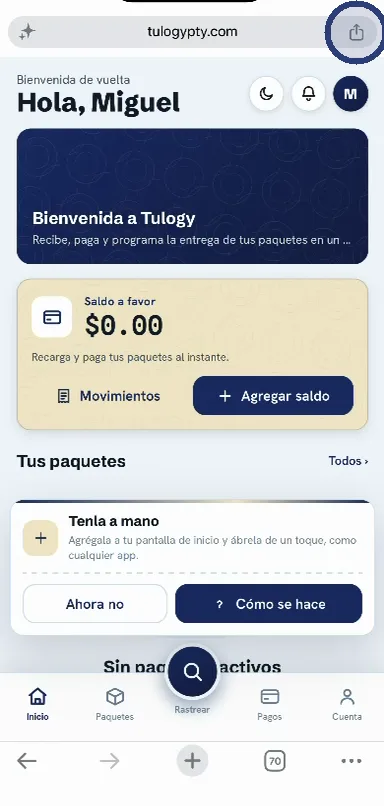
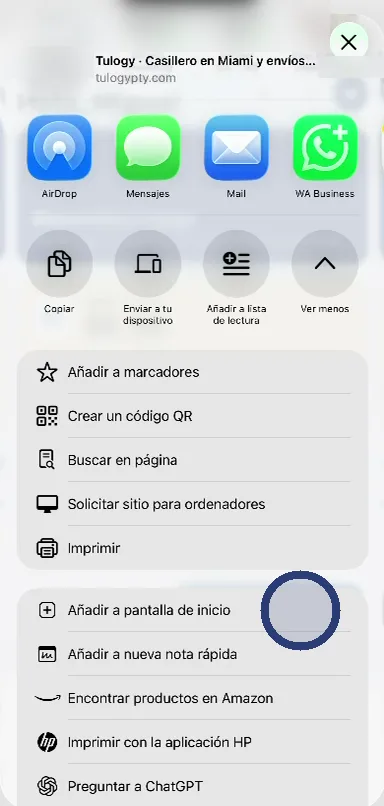
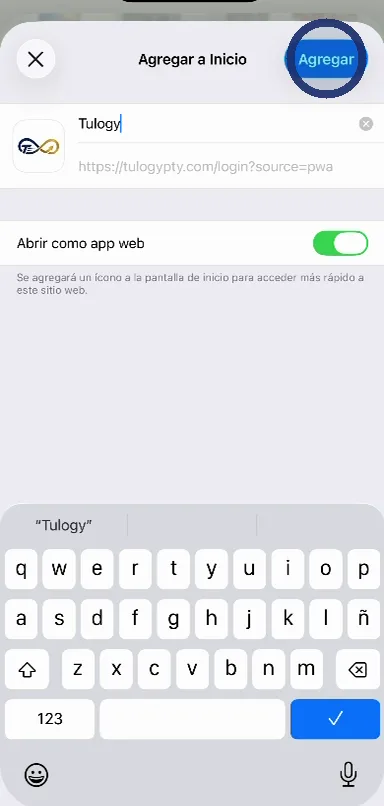
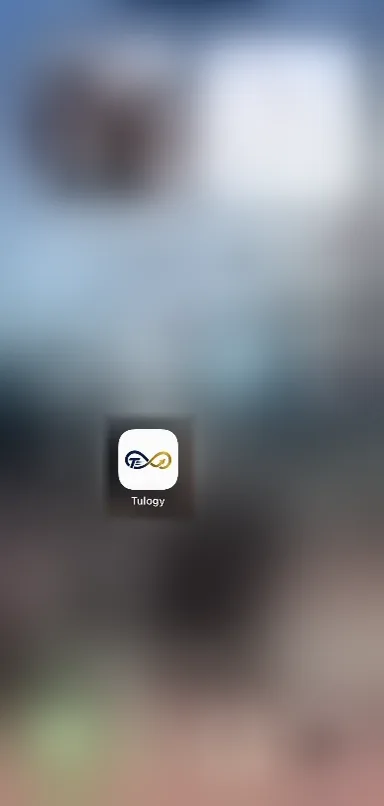
The recording is of a phone set to Spanish. On an English phone the option reads Add to Home Screen and the button, Add — the same two taps, in the same places.
On Android
Chrome usually shows an Install button on its own. If you do not see it, use the menu:
- Tap the ⋮ menu in the corner of the browser.
- Choose Install app or Add to Home screen.
- Confirm. The Tulogy icon lands beside your other apps.
Installed it already?
Look for the Tulogy icon beside your other apps. If it is not there, check that you confirmed the last step and try again from the sign-in screen.
Install it now
Open it in your phone’s browser and follow the steps above. If you do not have an account yet, it takes a minute and it is free.